Reconcile a Friday dispatch handoff
It is 4 p.m. The warehouse has sent its last scan file, and customer service needs to know which orders it can mark as shipped. One order may have several scans. Two order IDs differ only by a leading zero. A total of 21 ordered units and 21 scanned units looks reassuring, but only three orders are ready to close.
Download the dispatch case pack. Extract it and start with orders.csv and scans.csv in the inputs folder. Keep the expected folder closed until you have made your own handoff. All six orders and eight scan events are fictional. The exercise assumes positive whole units, a unique order per ID and a unique event per scan ID.
Load the two source tables
Import each CSV into a separate worksheet in the same workbook. Name the tabs Orders and Scans. In the import preview choose comma as the delimiter and set order_id to Text in both files before loading. Leave the quantities numeric. The Orders headers in A1:B1 should be order_id and ordered_units. The Scans headers in A1:C1 should be scan_id, order_id and scanned_units.
Check that Orders contains both 00127 and 0127. The first was ordered for 5 units, the second for 4. If they both display as 127, return to the source files and repeat the import with the ID column set to Text. Padding the loaded values would leave you guessing which order each scan belongs to. See Keep the zeros at the start for the import settings.
Match scans and flag unmatched events
On Scans, put order_matches in D1. Enter this formula in D2 and fill through D9. EXACT compares text literally, including the number of leading zeros. A result of 1 means the event matched one order, 0 means the event needs investigation, and a result above 1 means the order list contains an ambiguous key.
=SUMPRODUCT(--EXACT(B2,Orders!$A$2:$A$7))Scan S08 points to 00990 and gives 0. Set its 2 units aside on the exception list. Keep S01 and S03: both belong to 00127, but they have distinct scan IDs and record separate quantities. If an event ID repeats in a real export, confirm whether it is a retransmission before adding it twice. The two-list comparison guide covers checking references in both directions.
Decide which orders to close
On Orders add scanned_units, scan_count, variance and action in C1:F1. Enter these formulas in C2, D2, E2 and F2 respectively, then fill all four through row 7. Variance is scanned minus ordered. Check the scan count first so that an order with no events stays visibly separate from a partial shipment.
=SUMPRODUCT(--EXACT(A2,Scans!$B$2:$B$9),Scans!$C$2:$C$9)
=SUMPRODUCT(--EXACT(A2,Scans!$B$2:$B$9))
=C2-B2
=IF(D2=0,"no scan",IF(E2=0,"close",IF(E2<0,"short","over")))| Order ID | Ordered | Scanned | Events | Variance | Action |
|---|---|---|---|---|---|
| 00127 | 5 | 5 | 2 | 0 | close |
| 0127 | 4 | 3 | 1 | -1 | short |
| 00008 | 3 | 5 | 1 | +2 | over |
| 00810 | 3 | 0 | 0 | -3 | no scan |
| 00042 | 4 | 4 | 2 | 0 | close |
| 00077 | 2 | 2 | 1 | 0 | close |
If both similar IDs pick up the same scans, check the formula and the imported types. Select the 00127 row and inspect its contributing events: S01 has 2 units and S03 has 3. The 0127 row has only S02. If a count looks right but the quantity is zero, check that the scan quantities loaded as numbers. For a larger export, extend both scan ranges to cover the same last row.
Reconcile and hand off two lists
Filter action to close. Copy the three visible order IDs and scanned quantities as values into a clean sheet and export close-list.csv. Those orders account for 11 units. In a second sheet log the other three orders and the unmatched scan as four distinct exceptions. Use exceptions.csv in the expected folder to compare IDs, observed quantities and follow-up instructions. For the unmatched scan, leave ordered units empty: there is no order quantity to compare.
| Handoff check | Expected result |
|---|---|
| Order coverage | 3 to close + 3 on hold = 6 orders |
| Scan coverage | 7 matched events + 1 unmatched event = 8 events |
| Units on scan file | 19 matched + 2 unmatched = 21 units |
| Variance on known orders | 19 scanned minus 21 ordered = -2 units |
Send customer service the close list. Ask the warehouse to resolve the missing unit for 0127, check the excess for 00008, and look for a dispatch record for 00810. Ask which order S08 belongs to before assigning its two units. Adding S08 to the matched total would hide the shortage. Keep the scan file and the exception list together until the warehouse replies.
Reimport the close list and check that 00127, 00042 and 00077 still have their original lengths and the quantities total 11. Follow Check a CSV export before sending it for a worked reimport. The pack includes a complete six-row order reconciliation for checking intermediate results.
What Excel returned in the desktop test
We tested the two input CSVs in Excel for Mac on November 12, 2026. In File → Import → CSV file, choose the comma delimiter and select Text for the order_id column before loading. The ID is the first column in orders.csv and the second column in scans.csv. Click the order_id column in the preview before selecting Text. Leave the quantity column on General. In the resulting sheets, 00127 and 0127 stayed distinct.
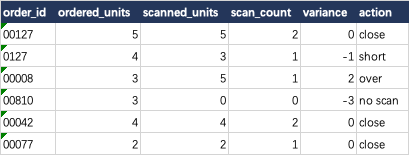
We checked C:F on all six Orders rows against order-reconciliation.csv. Every row matched the table above. On Scans, S01 through S07 each returned one match. S08 returned zero for order 00990. The three units from S02 belonged to 0127 alone.
We saved the close list and exceptions sheets individually as CSV UTF-8. Both saved files matched their expected headers and every field, including the empty ordered quantity for S08. We then imported the saved close list into a fresh worksheet with its first column set to Text. Excel returned three text IDs (00127, 00042 and 00077) and three numeric quantities (5, 4 and 2), totaling 11.
Download the two Excel-saved CSVs and the worksheet test record. The record includes the formulas and results by row. The desktop test used a Chinese-language interface; the capture shows the English worksheet cells.