Reconcile Excel totals by group without hiding missing amounts
Build a regional summary that separates zero from missing data and checks every input row against its group, with an eleven-row practice file.
In this guide
A regional total can add up perfectly while leaving out an amount stored as text. A second problem is an order with no region: it disappears if your summary only lists named regions. This exercise makes both problems visible before you send a report.
Use it after checking text amounts. The task here is coverage and reconciliation, not choosing decimal separators or converting every suspicious value automatically. The fictional amounts share one unit; do not add different currencies without an agreed conversion rule.
Establish the population before trusting coverage
Count the input records before grouping: this fixture contains 11 data rows. Confirm each row has the intended identifier and group. A coverage check based on populated cells is not evidence that blank-identifier records are absent; inspect those exceptions explicitly. Keep unresolved missing amounts separate from literal zero amounts. The group report is ready for handoff only after both the row population and the numerical totals reconcile.
Set up the eleven-row example
Download the input CSV, expected summary or complete practice pack. Keep the expected summary outside your working input. Place the input header and eleven records in A1:D12 of a blank worksheet. The columns are row_id, region, amount and input_type. Every row_id must remain present, including T05, whose region is empty.
CSV stores characters, not Excel cell types. The input_type column specifies how to reproduce this worksheet exercise. For rows marked number, enter the amount as an actual number in column C. Leave C9 empty for T08. Format C7 as Text before entering 30 for T06. If an import already converted that cell to a number, clear only C7, set its format to Text, then re-enter 30. Do not prefix all amounts with an apostrophe or format the entire amount column as Text.
Confirm =ISNUMBER(C7) returns FALSE, =ISNUMBER(C2) returns TRUE and C9 is empty. This setup deliberately recreates a mixed-type column. In real data, retain the raw input and investigate why an amount is text; the input_type labels are not an automatic conversion instruction.
The region names in this example have no wildcard characters or edge spaces. Use a controlled, unique list of region labels. The formulas below are case-insensitive, so East and EAST belong to the same group. Clean unexpected spaces under an explicit normalization rule before treating them as the same region.
Mark the actual amount type
Enter amount_status in E1. Keep E2:E12 formatted as General. In E2 enter:
=IF(ISNUMBER(C2),"numeric",IF(C2="","missing amount","text amount"))Fill E2 down through E12. T06 must say text amount, T08 must say missing amount, and the other nine records must say numeric. Zero and negative amounts are valid numbers in this exercise: T02 is a correction of -20, while T03 and T11 contain genuine zeros.
This formula examines the value in C, not the setup label in D. A source error such as #VALUE! needs investigation; do not replace errors with zero to make a summary look complete.
Build a summary with counts beside totals
Leave F empty. Enter region, rows, numeric_rows, subtotal and status in G1:K1. Enter East, West, North, South and Central in G2:G6. Enter the following formulas in H2, I2, J2 and K2 respectively:
=COUNTIFS($B$2:$B$12,G2)=COUNTIFS($B$2:$B$12,G2,$E$2:$E$12,"numeric")=SUMIFS($C$2:$C$12,$B$2:$B$12,G2,$E$2:$E$12,"numeric")=IF(H2=0,"no records",IF(I2<H2,"incomplete","complete"))Fill H2:K2 through row 6. The absolute source ranges stay fixed; G2 moves to each region label. If your Excel uses semicolons as argument separators, replace the formula argument commas with semicolons.
| Region | Rows | Numeric rows | Subtotal | Status |
|---|---|---|---|---|
| East | 4 | 3 | 85 | incomplete |
| West | 3 | 2 | 50 | incomplete |
| North | 2 | 2 | 50 | complete |
| South | 1 | 1 | 0 | complete |
| Central | 0 | 0 | 0 | no records |
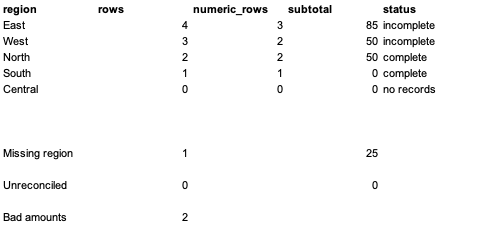
South has a real zero. Central has no observations. Publishing both as an unexplained zero would lose that distinction. East's 85 and West's 50 are partial numeric subtotals, not final totals. Here complete means every included row has a numeric amount; it does not prove the source export is complete or the amounts are correct.
Account for missing regions and omitted groups
In G10 enter Missing region. In H10 count its rows:
=COUNTIFS($B$2:$B$12,"")In J10 total its numeric amounts:
=SUMIFS($C$2:$C$12,$B$2:$B$12,"",$E$2:$E$12,"numeric")Expect one row and 25. Keep this amount visible until the source owner supplies the region; do not allocate it proportionally or drop the record. In G12 enter Unreconciled. In H12 check row coverage:
=COUNTA(A2:A12)-SUM(H2:H6)-H10In J12 check numeric amount coverage:
=SUM(C2:C12)-SUM(J2:J6)-J10Both differences should be zero. The named-region subtotals are 185; adding the missing-region 25 gives 210. This is the total of currently numeric amounts. SUM does not make the text 30 a valid amount. In G14 enter Bad amounts; in H14 enter:
=COUNTIFS(E2:E12,"<>numeric")Expect two. A zero reconciliation difference and two unresolved amounts can coexist. Keep both checks in the report. Row coverage assumes every row_id is populated and each region appears exactly once in the summary; verify those conditions. Two errors can also offset each other, so investigate changed group counts rather than relying only on the grand total.
Resolve and repeat safely
On a practice copy, change C7 to General and re-enter 30 as a number. East should become 115, four numeric rows and complete. The numeric source total becomes 240. West still needs its missing amount and T05 still needs a region; correcting one cell does not clear those issues. Restore C7 as Text with 30 to reproduce the downloadable expected summary.
For a larger file, extend every source range to the same last row and fill amount_status through that row. Extend the controlled summary list for new groups exactly once each. COUNTIFS and SUMIFS criteria support wildcards: this particular recipe assumes ordinary region names without *, ? or ~. It also includes filtered-out source rows. Do not use it as a visible-rows-only report.
After resolving exceptions, check the exported CSV. Keep the spreadsheet with formulas as your working copy; CSV does not retain these calculation rules or multiple worksheets.
Actual test record
On October 12, 2026, the eleven inputs were entered with their declared types in a separate Excel for Mac 16.113.2 workbook. Native formula reads confirmed all eleven amount statuses, five summary rows, the missing-region count and subtotal, both reconciliation differences and the two unresolved amounts. Changing C7 to numeric 30 produced 115/complete for East; restoring text 30 returned 85/incomplete.
The image above is an actual native Excel range capture. Only English worksheet content is shown. The Excel interface was Chinese. The test covers worksheet formulas and recalculation, not a new CSV import/export path, Windows Excel or English-interface menus. Download the dated test record.
References
Microsoft explains conditional addition in SUMIFS. The fictional data, coverage checks and distinction between partial and final totals are the practice method used here.