Team task and overdue tracker
Setup, expected results and troubleshooting
Use this workbook for a small team's review meeting. Each task gets one owner, due date, status and priority. An explicit review date makes the report repeatable: opening it tomorrow does not silently change yesterday's numbers.
Download the files
- Blank Excel template
- Filled Excel example
- Complete pack: both files, instructions and test notes
- Dated test notes
Check the worked example
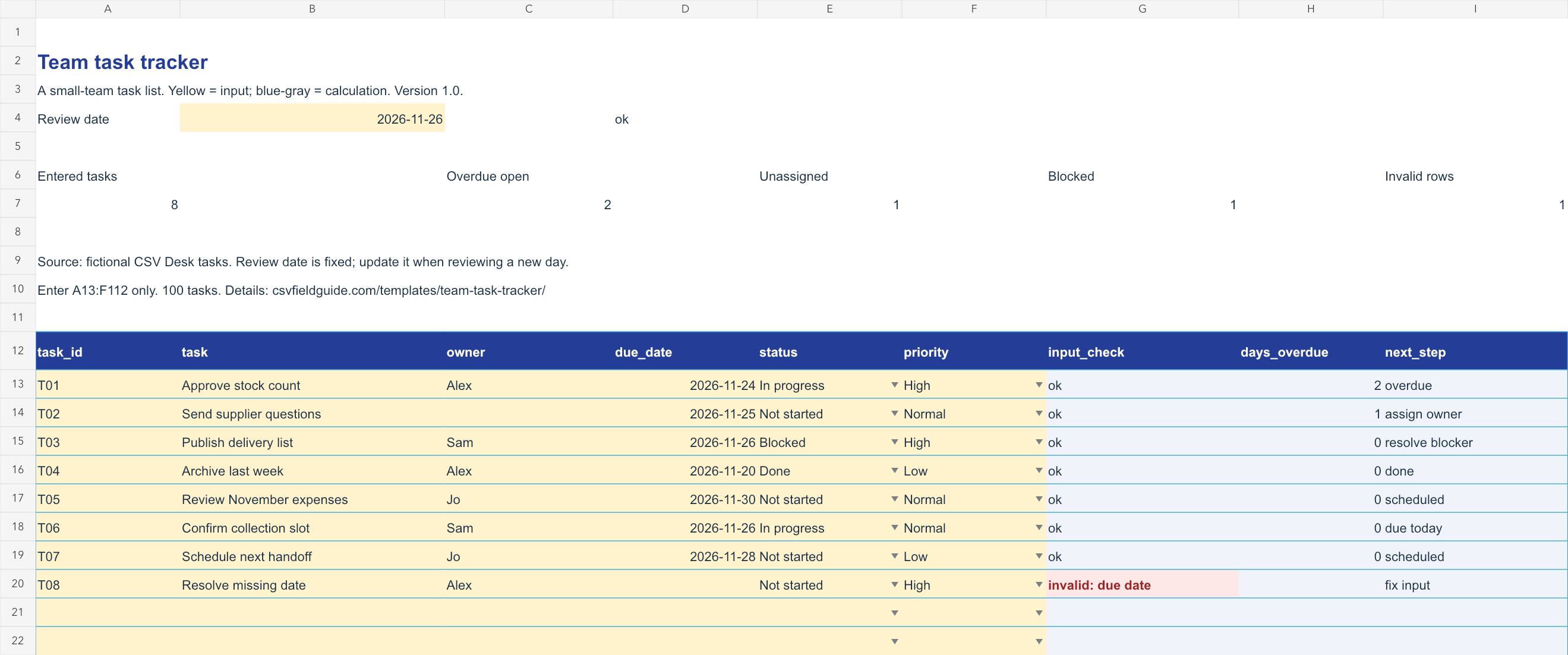
This is a rendered workbook preview. The native test used English worksheet content within a Chinese-language Excel interface.
At the November 26, 2026 review date, the example has 8 entered tasks, 2 overdue tasks, 1 unassigned task, 1 blocked task and 1 invalid row. Counts overlap: the unassigned task is also overdue, so adding all counts does not produce a unique task total.
| Task | Days overdue | Next step |
|---|---|---|
| T01 | 2 | overdue |
| T02 | 1 | assign owner |
| T03 | 0 | resolve blocker |
| T04 | 0 | done |
| T05 | 0 | scheduled |
| T06 | 0 | due today |
| T07 | 0 | scheduled |
| T08 | blank | fix input |
Set up the review
- Set Tasks B4 to the date of your review. Keep it fixed when sharing a dated snapshot; update it explicitly for the next review.
- Enter up to 100 tasks in A13:F112: unique task ID, task description, owner, due date, status and priority.
- Use
Not started,In progress,BlockedorDonefor status, andHigh,NormalorLowfor priority. - Leave owner blank only when you want an assignment exception. Due dates must be actual Excel dates.
- Resolve invalid rows, assign owners and address blockers. Then review overdue and due-today work. Priority helps you choose a work order; it does not change overdue arithmetic.
For valid open tasks, days overdue is the larger of zero and review date minus due date. A task due on the review date is due today, not overdue. Done tasks show zero overdue days even if their due date is in the past; this is not historical lateness reporting.
Understand the next-step order
Input errors take precedence. After valid inputs and review date: Done is shown first, then a missing owner, then Blocked, then overdue, due today and scheduled. A blocked overdue task therefore says resolve blocker while still contributing to the overdue count. Follow both the summary and individual row details.
| Symptom | What to check |
|---|---|
| No overdue change tomorrow | B4 is intentionally fixed; advance it for a new review |
| Assign owner hides overdue wording | Check days_overdue; owner assignment takes precedence in next_step |
| Invalid due date | Text dates and blank due dates must be corrected before calculations |
| Duplicate task ID | Distinguish genuinely separate tasks or remove the duplicate after checking the source |
| Done task has zero days | The template measures current open workload, not completion punctuality |
Use mixed date text before pasting imported deadlines. Use duplicate review to distinguish duplicated tasks from several tasks with the same description.
Native Excel test record
On November 26, 2026, the workbook was opened, recalculated and saved in local Excel. The five summary controls matched the baseline. Changing T01 to Done reduced overdue tasks from 2 to 1 and changed its next step to done. Restoring In progress restored the baseline. Assigning Taylor to T02 reduced unassigned tasks from 1 to 0 and changed next step to overdue, while its one overdue day remained. Clearing Taylor restored the example. Saved results were independently verified.
Automated tests additionally cover review-date changes, duplicate IDs, missing/text dates, unknown status, whitespace-only owner and the final supported row. See the download for the dated test scope.
Limits
100 tasks, one owner field and one deadline per task. No dependencies, reminders, recurring tasks, history, working-day calendar, permissions or automatic notifications. Overdue days are calendar days. Keep a dated copy when you need a review history.
Before entering your own data
Download the blank file and save a separate working copy. Yellow cells are inputs; pale formula columns calculate checks and results. Paste values into input columns only, not entire rows. Keep the sheet names and formula columns unchanged. These are fixed-capacity templates: adding rows outside the documented area does not extend the checks.
When replacing a batch, clear filters and remove all old input values first. A shorter new batch must not leave old records below it. Do not delete the formula columns. The blank file contains no sample records. The expense month and task review date are editable controls: set them for each review.
Text keys preserve leading zeros. Letter matching is case-insensitive: AB12 and ab12 are treated as the same key. Leading or trailing spaces are not silently repaired. Normalize identifiers deliberately using the leading-zero guide and space-cleaning guide. If letter case distinguishes real records in your system, this version is unsuitable.
Compatibility and use
Version 1.0. Native calculation was tested in desktop Excel for Mac on November 26, 2026. Windows Excel and browser spreadsheet apps have not been tested for this release. The workbooks use ordinary formulas, with no macros, external workbook connections or upload service. Your records remain in your local copy. Free to copy and adapt for your own work; retain a source copy and check results before operational use.
Keep the working file as .xlsx. CSV cannot preserve the workbook's multiple sheets, formulas, validation or presentation. Use the export checks if another system needs a separate flat delivery file.